Unlock Maximum Battery Life: The Essential App Setting for 2026
Unlock Maximum Battery Life: The Essential App Setting for 2026
Are you tired of your smartphone dying before the day is over? Do you constantly find yourself searching for a charger, even with a relatively new device? In the fast-paced world of 2026, where our smartphones are more than just communication tools—they are our personal assistants, entertainment hubs, and productivity powerhouses—having a device that can keep up is paramount. The promise of longer battery life often falls short, leaving many users frustrated. But what if we told you there’s one specific app setting, often overlooked, that holds the key to significantly helping you maximize battery life on your device? This isn’t about general tips like reducing screen brightness or disabling Wi-Fi; this is about a targeted, impactful adjustment that can revolutionize your daily mobile experience.
We’ve all been there: meticulously closing apps, turning off location services, and even enduring a dimmer screen, all in a desperate bid to squeeze a few more hours out of our phone’s dwindling power. While these general practices offer some relief, they often come at the cost of convenience or user experience. What if there was a way to achieve substantial battery gains without such drastic compromises? The answer lies deep within the labyrinthine settings of our modern operating systems and, more specifically, within the configurations of the applications we use daily. This article will delve into the single most crucial app setting that, when properly managed, can dramatically help you maximize battery life on your smartphone in 2026 and beyond.
Forget everything you thought you knew about battery saving. The technological landscape is constantly evolving, and with it, the strategies for optimal device management. What worked last year might be obsolete this year, and what’s cutting-edge today will be standard tomorrow. Our focus for 2026 shifts to a more granular level of control, moving beyond broad system-wide adjustments to pinpoint the exact culprits of power drain. By understanding and manipulating this one specific app setting, you can reclaim control over your device’s endurance, ensuring it lasts as long as you need it to, without constantly being tethered to a power outlet.
The Silent Killer: Understanding Background App Activity
Before we reveal the golden setting, it’s crucial to understand the underlying mechanism that silently siphons power from your device: background app activity. Many applications, even when not actively in use, continue to perform various tasks in the background. This can include fetching new data (emails, social media feeds, news updates), refreshing content, tracking your location, or even running complex processes that you’re completely unaware of. While some of this activity is essential for the app’s functionality (e.g., receiving instant messages), a significant portion is often unnecessary and contributes heavily to battery depletion.
Consider your favorite social media app. Even after you’ve closed it, it might still be checking for new notifications, downloading stories, or pre-loading content for your next session. Your email client might be constantly syncing, even if you only check emails a few times a day. Navigation apps, even when not actively navigating, might be periodically updating your location. All these seemingly small, independent actions add up, creating a constant, low-level drain on your battery. This ‘always-on’ mentality of many apps is a primary reason why phones struggle to last a full day, despite advancements in battery technology.
The challenge lies in distinguishing between essential background tasks and superfluous ones. Disabling all background activity would render many apps useless. The key is intelligent management, and that’s precisely where our specific app setting comes into play. It’s about giving you the power to decide which apps earn the right to operate in the background and to what extent, allowing you to maximize battery life without sacrificing critical functionality.
The Breakthrough Setting: ‘Background App Refresh’ (or its Equivalent)
The single most impactful app setting to maximize battery life in 2026 is what’s commonly known as ‘Background App Refresh’ on iOS, or its Android equivalents such as ‘Unrestricted Battery Usage,’ ‘Optimized Battery Usage,’ or specific app-level settings for ‘Background Data’ or ‘Allow background activity.’ While the precise nomenclature might vary slightly between operating systems and even different Android skins, the core principle remains the same: controlling an app’s ability to run processes, fetch data, and update content when it’s not actively open on your screen.
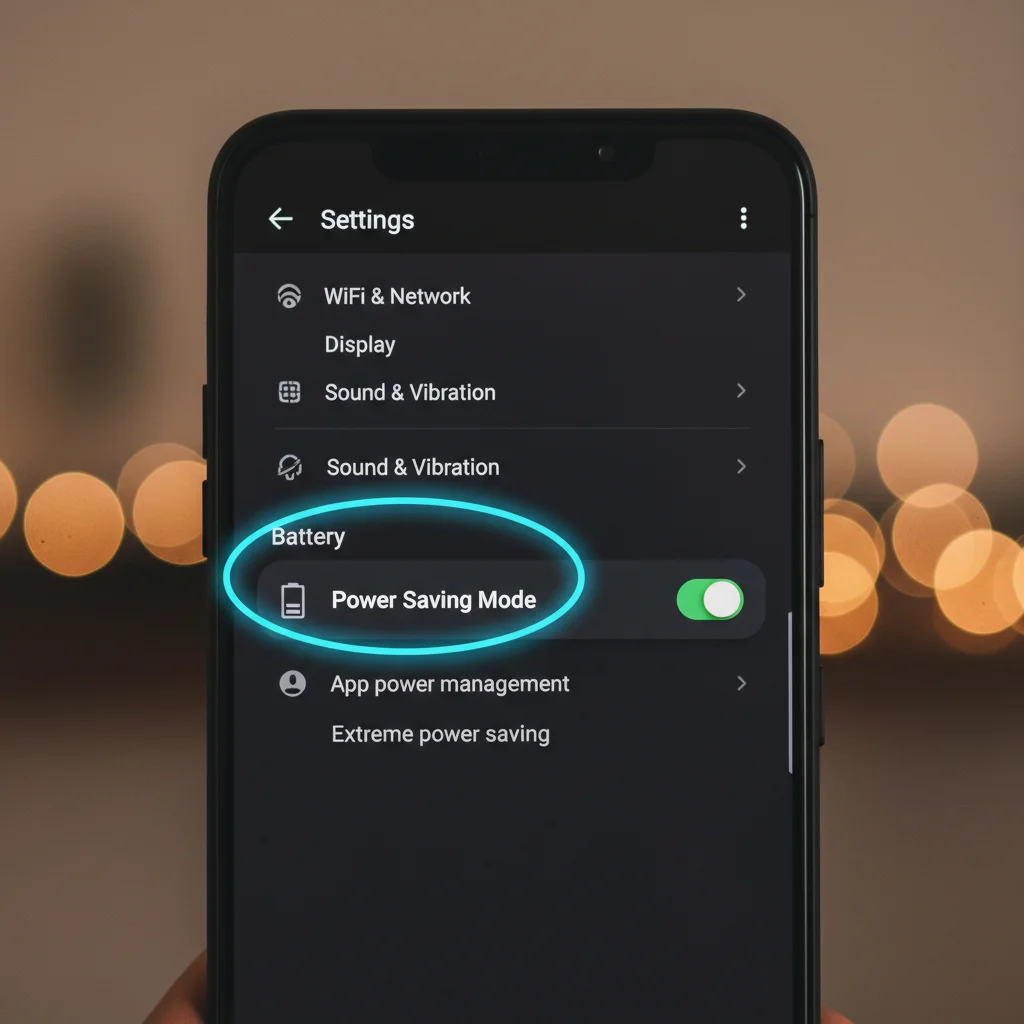
This setting is a powerhouse because it directly addresses the ‘silent killer’ of background activity. By limiting or selectively disabling background refresh for non-essential applications, you prevent them from waking up your device’s processor, utilizing cellular or Wi-Fi data, and accessing GPS or other sensors when you don’t explicitly need them to. Imagine the cumulative effect of dozens of apps constantly performing these actions throughout the day. By reining in this uncontrolled background behavior, you significantly reduce the overall power consumption of your device, enabling you to maximize battery life like never before.
How to Locate and Configure This Setting: A Step-by-Step Guide
The exact path to this setting can differ, but here’s a general guide for both major mobile operating systems:
For iOS Devices (iPhone/iPad):
- Go to Settings.
- Scroll down and tap on General.
- Tap on Background App Refresh.
- Here, you have a few options:
- Off: This will disable background app refresh for all apps. While it offers the best battery savings, it might mean you don’t get timely notifications from certain apps until you open them.
- Wi-Fi: Apps will only refresh in the background when connected to Wi-Fi. This is a good balance for saving cellular data and some battery.
- Wi-Fi & Cellular Data: This is the default and allows apps to refresh using either connection. This is often the biggest battery drainer.
- Below these global options, you’ll see a list of all your installed apps with individual toggles. This is where the real optimization happens.
- Recommendation: Go through this list thoughtfully. For apps like messaging services (WhatsApp, Messages) or essential email, you might want to keep Background App Refresh enabled. For social media apps, games, news aggregators, or shopping apps that you don’t need instant updates from, consider turning this off. This targeted approach is key to helping you maximize battery life without hindering critical communication.
For Android Devices:
Android’s approach is a bit more fragmented due to various manufacturers and Android versions, but the core functionality exists. You’ll typically find these settings under ‘Battery’ or ‘Apps & Notifications’.
- Go to Settings.
- Navigate to Apps & Notifications (or just Apps, or Applications).
- Tap on See all apps (or App management).
- Select a specific app you want to optimize.
- Look for options like Battery, Mobile data & Wi-Fi, or Data usage within that app’s settings.
- Inside the Battery section for an app, you might find:
- Background restriction: This explicitly prevents the app from running in the background.
- Optimized (Recommended): The system manages background activity based on usage patterns.
- Unrestricted: Allows the app to use as much battery as it needs in the background (often the default for many apps, and a major battery drainer).
- Alternatively, under Mobile data & Wi-Fi (or Data usage), you might find a toggle for ‘Background data’ or ‘Allow background data usage.’ Disabling this will prevent the app from using mobile data when not actively in use, which in turn reduces battery consumption.
- Recommendation: Similar to iOS, go through your apps one by one. For apps that you don’t need constant real-time updates from (e.g., games, photo editing apps, streaming services when not actively watching), restrict their background activity or disable background data. Prioritize essential communication tools and navigation apps for unrestricted or optimized usage. This granular control is essential to maximize battery life effectively.
Why is This Setting So Powerful in 2026?
The year 2026 brings with it increasingly sophisticated applications that leverage AI, machine learning, and richer media content. While these advancements enhance user experience, they also demand more from your device’s resources. Many apps are designed to be ‘smart’ – constantly learning, updating, and anticipating your needs. This intelligence often translates into more background processing, more data fetching, and more sensor usage, even when you’re not interacting with the app. The ‘Background App Refresh’ type setting becomes more critical than ever because it acts as a direct gatekeeper to these resource-intensive background operations.
Furthermore, operating systems in 2026 are becoming more adept at managing battery life, but they often rely on user input for fine-tuning. While ‘Adaptive Battery’ features on Android and ‘Optimized Battery Charging’ on iOS do a good job, they can’t always predict your specific usage patterns or preferences for every single app. Manually adjusting background refresh settings gives you a level of control that automated systems can’t fully replicate, allowing for truly personalized battery optimization to maximize battery life.
Beyond the Obvious: The Hidden Impact
It’s not just the immediate power draw that makes background activity so draining. Here are some hidden impacts:
- CPU Wake-ups: Every time an app performs a background task, it wakes up your device’s central processing unit (CPU). Frequent wake-ups prevent your CPU from entering its deepest, most power-efficient sleep states, leading to constant, low-level power consumption.
- Network Activity: Background data fetching constantly engages your device’s Wi-Fi or cellular radio. These radios are significant power consumers, especially cellular radios that work harder to maintain a signal. Less background fetching means less radio activity and better battery life.
- Location Services: Many apps, under the guise of background activity, periodically access your location. GPS and other location services are notoriously power-hungry. Restricting background refresh can limit this unnecessary location tracking.
- Push Notifications vs. Background Refresh: It’s important to differentiate. Disabling background app refresh does NOT typically prevent you from receiving push notifications. Push notifications are server-initiated and are generally very power-efficient. Background refresh, on the other hand, is app-initiated data fetching. So, you can still get your instant messages without letting the messaging app constantly sync in the background.
Real-World Impact: Case Studies and Expected Improvements
Users who diligently implement this strategy often report significant improvements in battery life, sometimes extending their device’s endurance by 20-30% or even more. For a phone that barely made it through 12 hours, this could mean an extra 2-4 hours of usage, easily getting you through a full day without needing a top-up.
Consider a hypothetical user, Alex, who uses a variety of apps: social media, news, games, and a few productivity tools. Before optimizing, Alex’s phone would typically hit 20% battery by 5 PM. After carefully going through each app and disabling background refresh for all non-essential applications (games, news feeds, certain social media apps), Alex found their phone consistently lasted until 8 PM or even 9 PM with similar usage. This is the power of targeted optimization, allowing Alex to maximize battery life without feeling restricted.
Another common scenario involves travel. When cellular signal is weak or inconsistent, apps trying to refresh in the background will work harder and consume significantly more power. By disabling background refresh for most apps before a journey, you can drastically conserve battery, ensuring your phone remains functional when you need it most for navigation or emergencies.
Advanced Tips for Maximizing Battery Life with This Setting
While disabling background app refresh for non-essential apps is the primary goal, here are some advanced tips to further refine your strategy and truly maximize battery life:
1. Regular Review and Adjustment
Your app usage patterns change. New apps are installed, old ones are forgotten. Make it a habit to review your ‘Background App Refresh’ settings every few months. Are there apps you rarely use that still have background permissions? Are there new apps that are excessively draining your battery?
2. Monitor Battery Usage by App
Both iOS and Android provide detailed breakdowns of app battery usage. Regularly check these reports (found under Settings > Battery). If an app is consuming a disproportionate amount of battery and you suspect background activity, investigate its specific settings. This data-driven approach helps you pinpoint the biggest offenders and adjust their background refresh status accordingly.
3. Differentiate Between Wi-Fi and Cellular
On iOS, you have the option to allow background refresh only on Wi-Fi. This is an excellent compromise. Cellular data consumption is generally more battery-intensive than Wi-Fi. By limiting background refresh to Wi-Fi, you save significant power when you’re out and about, relying on cellular data.
4. Understand ‘Push’ vs. ‘Fetch’
Some apps, like email clients, offer both ‘Push’ and ‘Fetch’ options. ‘Push’ delivers new mail instantly to your device (server-initiated, efficient). ‘Fetch’ means your device periodically checks the server for new mail (device-initiated, less efficient, related to background refresh). Wherever possible, opt for ‘Push’ for critical services and disable ‘Fetch’ or set it to a very long interval (e.g., hourly or manual) to maximize battery life.
5. Consider ‘Low Power Mode’ (iOS) or ‘Battery Saver’ (Android)
While our focus is on a specific app setting, these system-wide modes can work in conjunction with your background refresh optimizations. When enabled, they often automatically restrict background app activity, among other power-saving measures. Use them when you know you’ll be away from a charger for an extended period, or when your battery is critically low. However, even with these modes, fine-tuning individual app background refresh settings still provides a more granular and often more effective long-term solution.
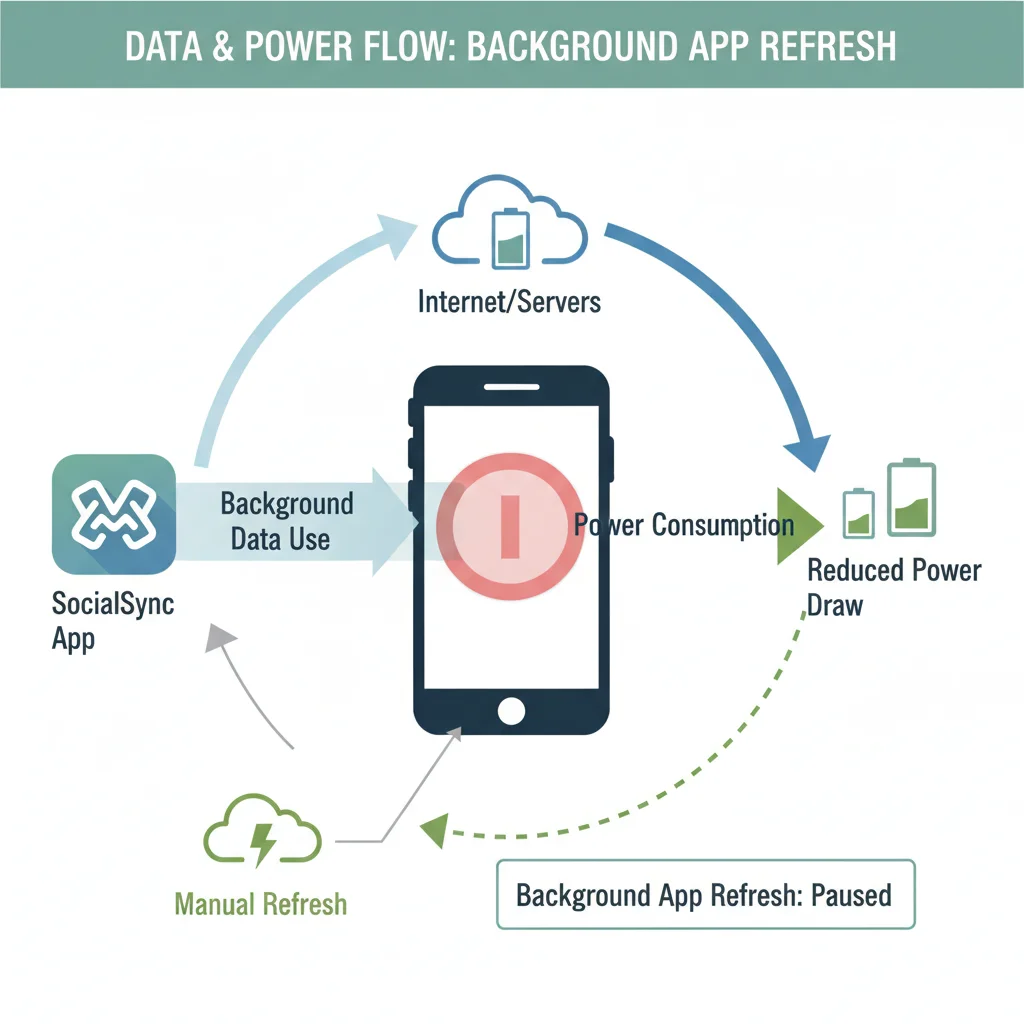
By combining the power of the ‘Background App Refresh’ setting with these advanced tips, you’re not just saving battery; you’re taking proactive control of your device’s energy consumption. This empowers you to use your smartphone more freely, without the constant anxiety of a dying battery.
The Future of Battery Optimization: What to Expect Beyond 2026
As we look beyond 2026, battery technology will undoubtedly continue to improve, with advancements in solid-state batteries and more efficient power management integrated directly into chipsets. Operating systems will also become even smarter, leveraging AI to predict user needs and automatically optimize app behavior. However, the fundamental principle of background activity management will remain relevant.
We might see more sophisticated permissions models, allowing users to define specific ‘windows’ for background activity (e.g., ‘only allow background refresh between 2 AM and 4 AM’). There could also be more transparent reporting on the exact resources (CPU cycles, network packets, sensor usage) consumed by background tasks, giving users even greater insight into power drain. Regardless of these future innovations, the ability to control an app’s background operations will likely remain a cornerstone of effective battery management. Learning to master this setting now will prepare you for future iterations of mobile technology and ensure you can always maximize battery life.
Conclusion: Empowering You to Maximize Battery Life
In an era where our dependence on smartphones grows exponentially, the ability to maximize battery life is no longer a luxury but a necessity. While many factors contribute to battery drain, the often-overlooked ‘Background App Refresh’ setting (or its Android equivalents) stands out as the single most impactful adjustment you can make in 2026. By taking a few moments to understand and configure this setting for each of your applications, you can dramatically extend your device’s endurance, reduce charging anxiety, and enjoy a more consistent, reliable mobile experience.
This isn’t just about saving power; it’s about reclaiming control over your device. It’s about making your smartphone work for you, not against you, by intelligently managing its resources. So, take the plunge into your settings menu, empower yourself with this insider knowledge, and unlock the full potential of your device’s battery life. You’ll be amazed at the difference a single, well-managed setting can make.